The short version
• No passwords. Users sign in with a one-time email code, Google, or Apple.
• No OAuth setup. No Google Cloud console, no Apple Developer Services ID, no client secrets, no redirect-URI headaches.
• One script tag on a plain HTML site. Ready templates for React, React Native, WordPress, Wix and Squarespace.
• Free. Free to use, limited only to 10 requests per second per user IP.
• Minutes, not sprints. Create a project, tick the sign-in methods, paste the snippet.
Why passwordless
• Nothing to spray. Password spraying needs a password field. Email codes and Google/Apple sign-in don't have one.
• Nothing to stuff. Leaked passwords from other sites can't be replayed against yours.
• Nothing to store. No password hashes in your database, so no hashes to leak or crack.
• Bots get stuck. Every login needs a fresh code from a real inbox, or a real Google/Apple account.
• Fewer support tickets. No "forgot password" flow to build, secure and answer emails about.
• Faster sign-up. Two taps with Google or Apple. No password rules, no confirm-password box.
Google and Apple without the OAuth homework
• Doing it yourself means: a Google Cloud project, OAuth consent screen, verification, client ID and secret, authorised redirect URIs per environment.
• For Apple it also means: a paid Apple Developer account, an App ID, a Services ID, a private key, domain verification, and rotating the client-secret JWT.
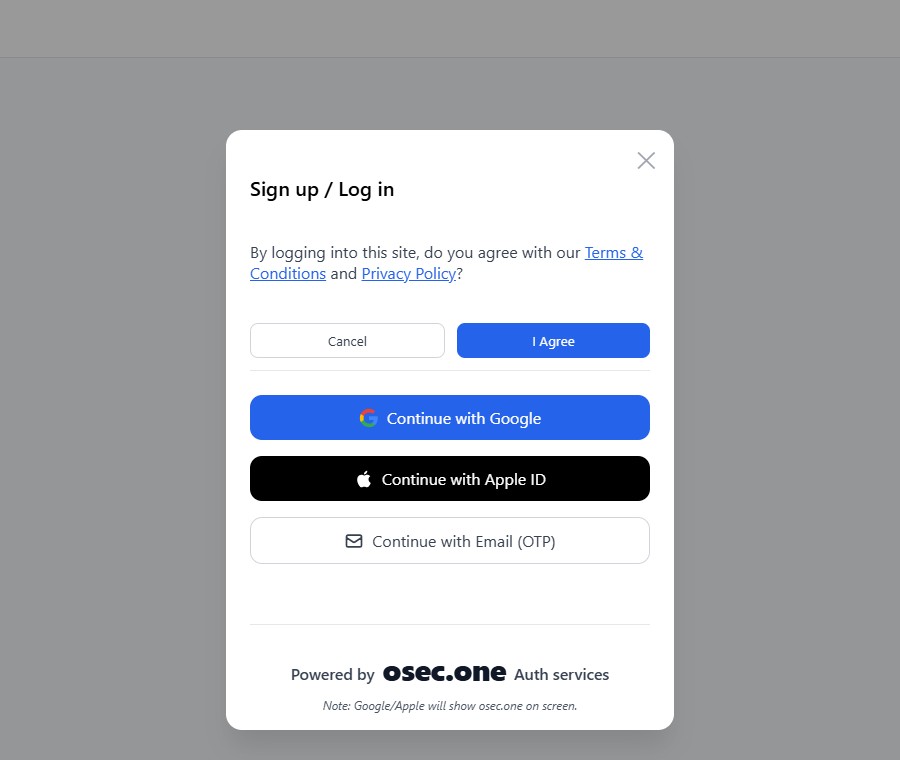
• With osec.one: none of that. osec.one runs the Google and Apple OAuth apps. Your site just shows the buttons.
• How it works: the button sends the user to osec.one's Google/Apple start endpoint with your site's origin and appcode, and the result comes back to your page as a signed-in session.
• The trade-off, stated plainly: Google's and Apple's own screens show osec.one as the app name, not your brand. The dialog says so too.
Setup, step by step
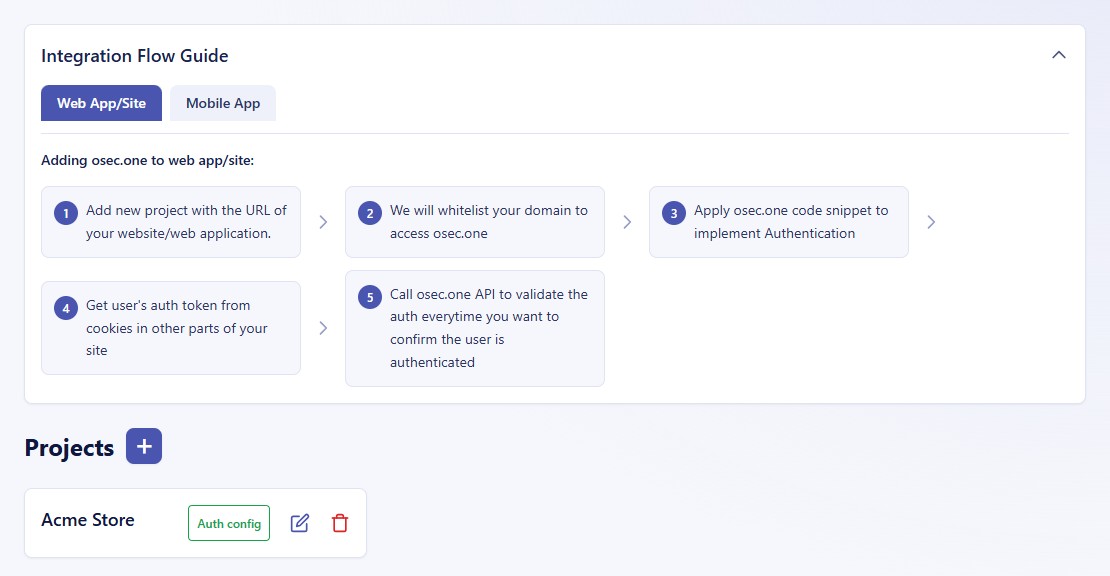
1. Create your project
• Sign in at osec.one with your email code. Free account, no card.
• Open the admin console and press + next to Projects.
• Pick Web app and enter your site's domain, for example https://shop.example.com.
• Your domain becomes the project's appcode and is allow-listed to call osec.one.
2. Choose sign-in methods
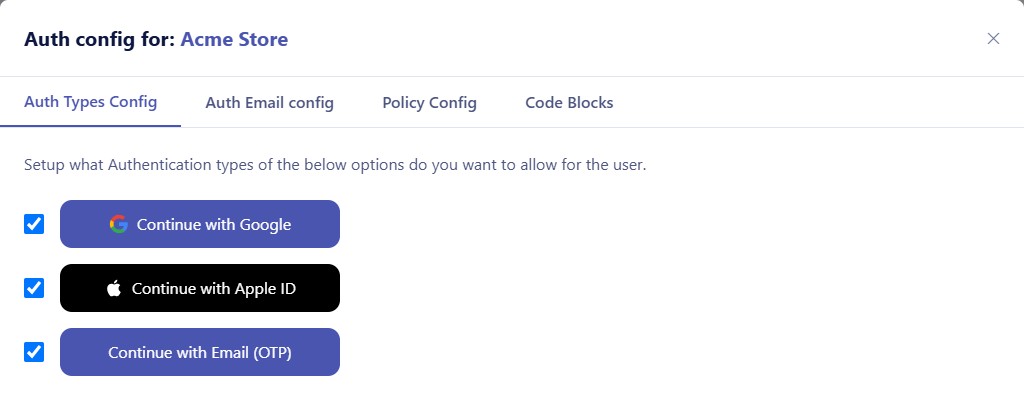
• Open Auth config on the project.
• Tick Continue with Google, Continue with Apple ID and Continue with Email (OTP). Any mix works.
• Change it any time. No redeploy of your site needed.
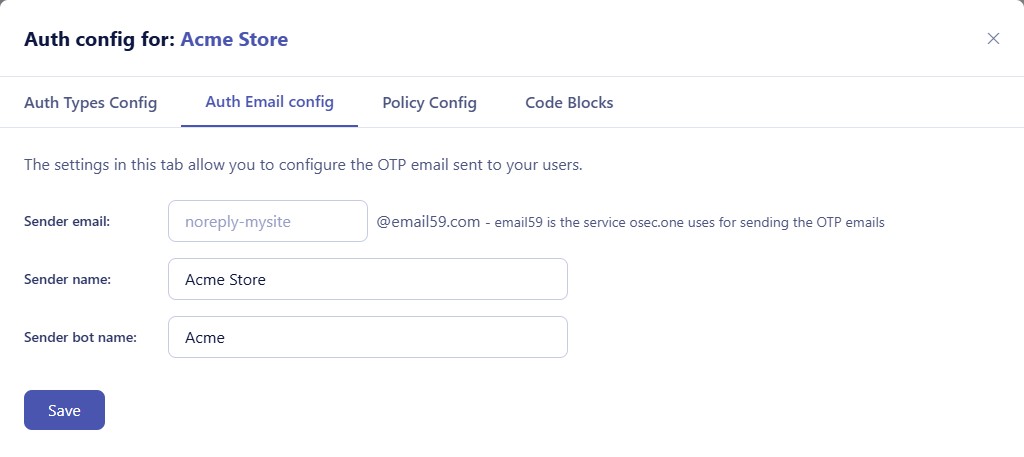
3. Brand the email code
• Sender name: what users see in their inbox, e.g. your store name.
• Sender email: a noreply-yoursite@email59.com address. osec.one sends the codes, so you don't set up an email provider either.
• Bot name: a friendly sender identity for the code emails.
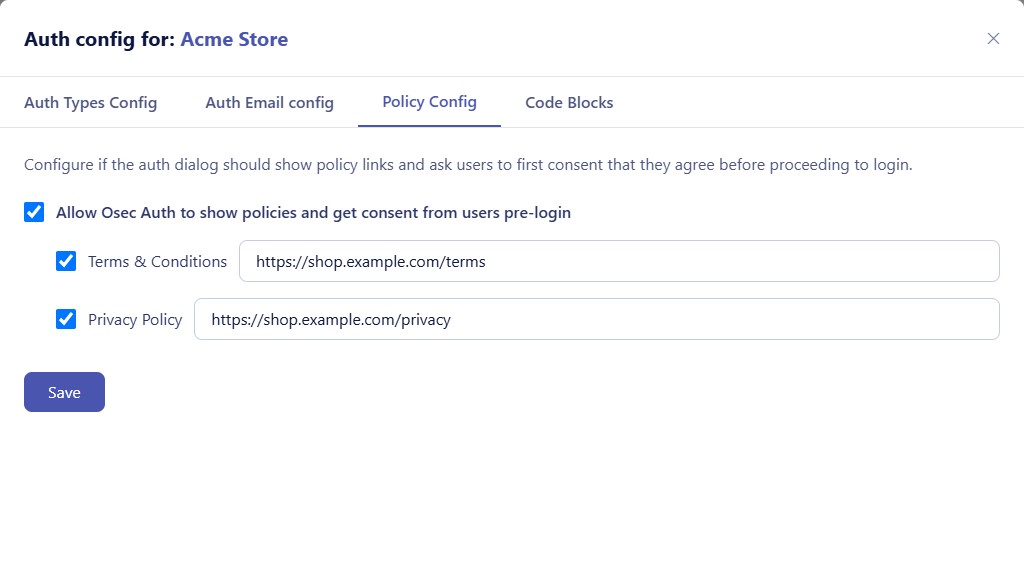
4. Optional: terms and privacy consent
• Turn on show policies and get consent pre-login.
• Add your Terms & Conditions and Privacy Policy links.
• Users must agree before they can continue to sign in.
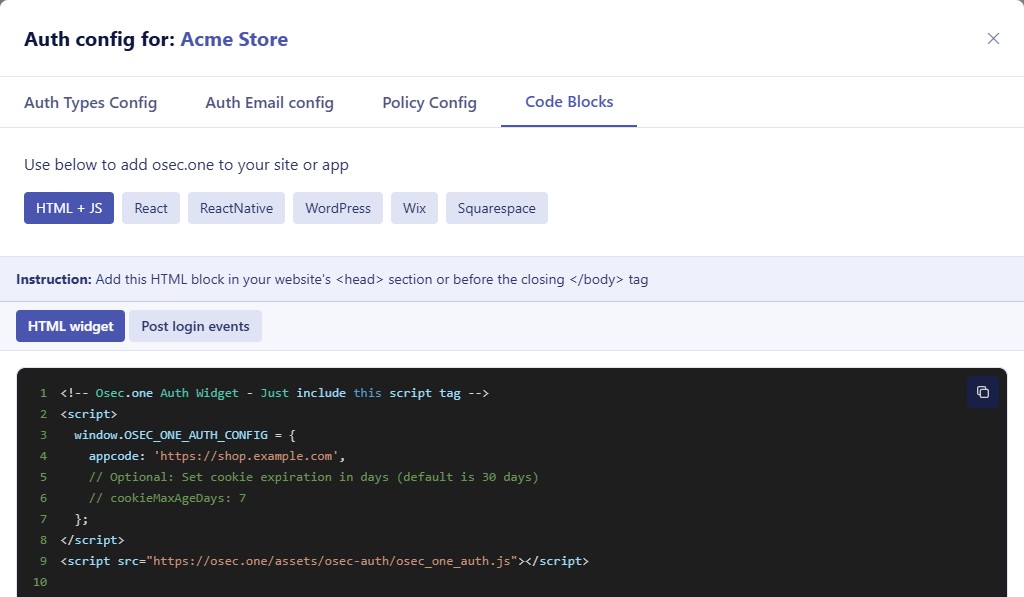
5. Paste the snippet
• Open Code Blocks and pick your stack: HTML + JS, React, React Native, WordPress, Wix, Squarespace.
• Your appcode is already filled in. Press copy.
• Plain HTML: put the snippet in <head> or before </body>.
• Add a button that calls window.osec_one_auth.open(). That's the whole login UI.
6. React to the login
• Listen for osec_one:login:success. The event carries the token, email, name and picture.
• osec_one:login:failure tells you when something went wrong.
• Cookies set after login: session (the token) and loggedin_user (email, name, picture). Cookie lifetime is configurable (cookieMaxAgeDays, default 30).
• The Post login events tab in Code Blocks has the full ready-made handler.
7. Validate on your server
• Send the session token as a Bearer token with each API call.
• On your backend, check it with osec.one's validate endpoint (with your appcode) before trusting the request.
• Cache the result for a few minutes to keep it fast.
• Result: impersonated or replayed requests are rejected, on every call, not just at login.
Which setup is yours
Existing site with passwords today
• Add osec.one next to your current login and match users by verified email.
• Let people switch at their own pace, then retire the password form.
• Your user table stays yours. osec.one just proves who the person is.
New site or landing page
• Skip building auth entirely: no signup form, no reset flow, no password storage.
• One snippet, one button, done.
• Works on site builders too: WordPress, Wix, Squarespace templates included.
SaaS app
• React and React Native templates for web and mobile.
• One osec.one account, one project per app or environment.
• Server-side token validation on every API call.
• Access Logs in the console show sign-in activity per project.
Larger teams and enterprise rollouts
• One consistent sign-in across many apps: Biz59 already runs its own apps on osec.one.
• Per-project settings for methods, email branding and consent.
• Domain allow-listing: only registered origins can use your project.
• Need more (volume, custom terms, help migrating)? Talk to us from the site footer.
Good to know
• Price: free. Sign-in isn't metered.
• Limit: 10 requests per second per user IP, which is plenty for normal logins and slows down abuse.
• More tools on the same account: captcha, bot gate, login protection, monitoring. See pricing.
• Google/Apple screens name osec.one as the app. Email-code sign-in shows your sender name.
• Email delivery for codes is handled by osec.one through email59.
• Your data: osec.one returns the verified email, name and picture. You decide what to store.
Checklist
1. Sign in at osec.one.
2. Create a Web app project with your domain.
3. Tick Google, Apple and Email (OTP).
4. Set your sender name.
5. Optional: add terms and privacy links.
6. Copy the snippet for your stack.
7. Add a Login button that calls window.osec_one_auth.open().
8. Handle osec_one:login:success.
9. Validate the session token on your API.
10. Delete your password reset code. You won't need it.
Passwordless sign-in with email codes, Google and Apple. No OAuth setup. Free.
Start free on osec.one